
Introduction
Web browsers are powerful tools, but the right extensions can make them even more useful. This Browser Extensions Guide is designed for beginners and intermediate users who want to improve productivity, security, and convenience while browsing the internet. Browser extensions add useful features without requiring complex software installations. Whether you need to block ads, manage passwords, save notes, or improve workflow, choosing reliable extensions can simplify daily online tasks and create a faster, safer, and more organized browsing experience.
What is Browser Extensions Guide?
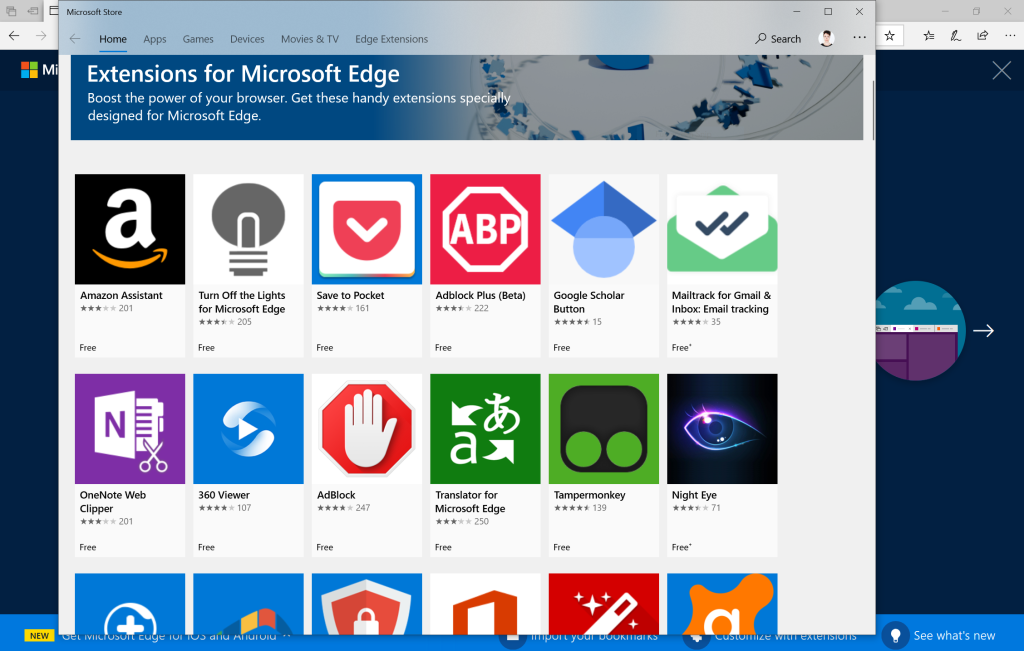
A Browser Extensions Guide explains how browser extensions work, how to install them safely, and how to choose the right ones for your needs. Browser extensions are small software add-ons that expand the functionality of web browsers by providing additional features and customization options.
For example, a password manager extension securely stores login credentials, while an ad blocker removes distracting advertisements from websites.
Why is Browser Extensions Guide Important?
Following a reliable Browser Extensions Guide helps users install trustworthy extensions, avoid security risks, and improve browsing efficiency. Well-chosen extensions can automate repetitive tasks, organize bookmarks, improve accessibility, and strengthen online privacy.
Learning how to manage extensions properly also prevents browser slowdowns and reduces the chances of installing harmful software.
Step-by-Step Guide
1. Identify Your Needs
Decide whether you need extensions for productivity, security, note-taking, translation, shopping, or web development.
2. Install from Trusted Sources
Download browser extensions only from official browser extension stores to reduce security risks.
3. Review Permissions
Check what information an extension can access before installing it. Avoid extensions requesting unnecessary permissions.
4. Keep Extensions Updated
Install updates regularly to receive new features, performance improvements, and important security fixes.
5. Remove Unused Extensions
Delete extensions you no longer use to improve browser speed and reduce potential security vulnerabilities.
6. Monitor Browser Performance
Review extension activity periodically to ensure your browser remains fast, secure, and stable.
Benefits
Using this Browser Extensions Guide provides several important advantages:
- Improves browsing productivity.
- Enhances online security.
- Reduces repetitive tasks.
- Organizes digital workflows.
- Supports easier password management.
- Creates a more personalized browsing experience.
Risks or Disadvantages
Although browser extensions offer many benefits, users should understand a few limitations:
- Poor-quality extensions may slow browser performance.
- Some extensions request excessive permissions.
- Too many installed extensions can create compatibility issues.
- Untrusted extensions may introduce security or privacy risks.
Common Mistakes to Avoid
Many users install numerous extensions without checking reviews or permissions. This often leads to slower browser performance and unnecessary security risks. Another common mistake is forgetting to update installed extensions, leaving known vulnerabilities unpatched.
Ignoring browser performance issues or keeping unused extensions installed can also reduce efficiency. Following this Browser Extensions Guide consistently helps maintain a secure and optimized browsing environment.
FAQs
What are browser extensions?
Browser extensions are small software add-ons that expand browser features and improve functionality.
Are browser extensions safe?
Extensions from trusted developers and official stores are generally safe when used responsibly.
Can too many extensions slow my browser?
Yes. Installing excessive extensions can reduce browser speed and performance.
How often should I update browser extensions?
Enable automatic updates or check regularly for the latest security improvements.
Should I remove unused extensions?
Yes. Removing unnecessary extensions improves browser performance and reduces security risks.
Expert Tips
Install only the extensions you truly need instead of filling your browser with unnecessary add-ons. Read user reviews and permission requests before installing new extensions. Regularly review installed extensions and disable those you rarely use. Keep both your browser and extensions updated to maintain compatibility and security. Applying this Browser Extensions Guide consistently will improve productivity, protect your privacy, and create a smoother browsing experience.
Conclusion
Browser extensions can significantly improve the way you use the internet when selected and managed carefully. By installing trusted extensions, reviewing permissions, updating software regularly, and removing unnecessary add-ons, you can enjoy a faster, safer, and more productive browsing experience. This Browser Extensions Guide provides practical advice for beginners and intermediate users looking to maximize browser performance without compromising security. Continue reviewing your browser setup regularly, use only reliable extensions, and maintain good security habits to enjoy long-term efficiency and online safety.